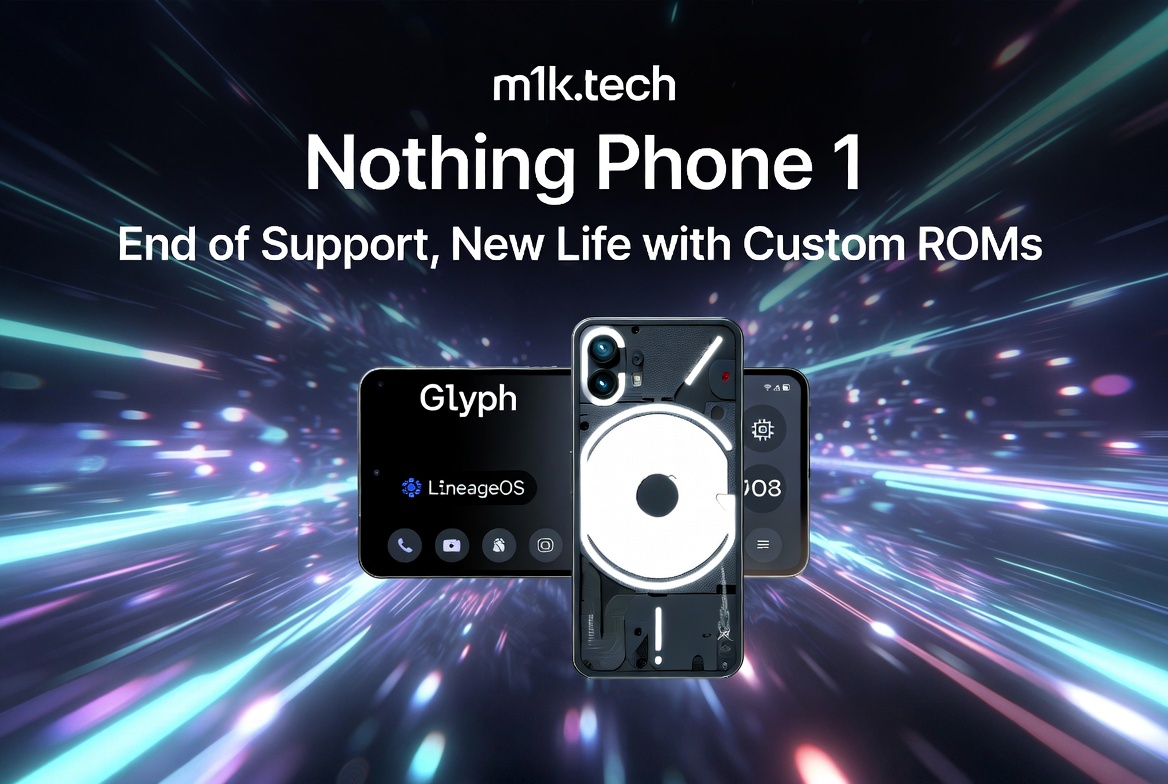
The final Phone 1 update is a July 2026 security patch, a few bug fixes, some stability work, and a note from Nothing that the phone “remains highly usable.” That’s the whole payload. Roughly four years after the Phone 1 turned up in July 2022 as the transparent, blinking thing that launched the entire brand, its software story is officially closed.
I’ve had a soft spot for this one, mostly because it’s where Nothing OS actually started. Everything the newer phones do, the Glyph lighting and the monochrome design language and the pared-back software, got its first real outing on the Phone 1. Watching Nothing draw the curtain on it, days before it launches a new budget phone, feels about right for where the company is, and it still stings a little.
It shipped on Android 12 with a Snapdragon 778G+, and Nothing promised three Android upgrades plus four years of security patches. It delivered on both: Android 13, then 14, then 15, and now the July 2026 patch that closes the security window for good. Android 15, running under Nothing OS 3.x, is where the major-version road ended. No Nothing OS 4.0, no Android 16. Carl Pei called the major-update cutoff “bittersweet” back in September and softened the landing with a 300-dollar credit toward the Phone 3.
Three years of OS updates read fine in 2022. In 2026 it reads thin, when a Pixel gets seven years and Nothing’s own Phone 3 and 3a stretch further than the phone that started the lineup ever got. And the final Phone 1 patch landing right before the budget Phone 4b arrives on July 7, reportedly on a Snapdragon 6 Gen 4 with Nothing OS 4.1, is not the most subtle piece of timing I’ve seen. I get it. Nothing is a young company with finite engineers, and pushing loyal owners onto current hardware is just how this works. The nudge is still doing a lot of the talking.
The phone Nothing left on Android 15 is already running Android 16
Here’s the part I like. Spacewar, the Phone 1’s codename, is officially supported by LineageOS, and the current official build tracks Android 16 through LineageOS 23 (nightly available). So volunteers are handing the Phone 1 a newer version of Android than Nothing ever put on it. If you want a single argument for why custom firmware is worth an afternoon, that’s it, right there.
LineageOS is the one I’d start with: close to stock Android, current security patches, not much extra weight on top. You give up Nothing’s camera tuning and most of the Glyph’s cleverness, which, on this specific phone, is a real loss if the lights were part of why you bought it. If you want some of that customization back, crDroid and the VoltageOS-style builds kicking around XDA lean hard into UI tweaks, and a few restore partial Glyph control. If the goal is to get Google off the device entirely, /e/OS and iodéOS are the de-Googled routes, both built on the same Lineage base, with microG standing in for Play Services. I’m not going to catalog every ROM on the list. Those are the ones I’d actually trust as a daily driver.
The rest of this is the actual how-to. I’ll use LineageOS as the reference build because it’s official for Spacewar and the instructions are the cleanest, but the fastboot and sideload steps are close enough to identical on crDroid, /e/OS, and the others that you can follow along and just swap the zip.
Before you touch anything
Unlocking wipes the phone. Everything. Back up your photos, your 2FA seeds, whatever WhatsApp history you care about, before you start, because there’s no undo halfway through.
You need three downloads on a PC (Windows, macOS, or Linux all work):
- Android platform-tools for ADB and Fastboot, from the source, not a random mirror: https://developer.android.com/tools/releases/platform-tools . Unzip it somewhere you can
cdinto. - The LineageOS build and recovery for Spacewar, straight from the official device page: https://wiki.lineageos.org/devices/Spacewar/ , with the step-by-step on the install tab at https://wiki.lineageos.org/devices/Spacewar/install . Grab both the
lineage-*-Spacewar.zipand the matching*-recovery.img. - The Nothing Archive as your safety net, so you can flash back to full stock and relock if you change your mind: https://github.com/spike0en/nothing_archive.
If you want Google apps, download MindTheGapps for the corresponding Android version as well. LineageOS ships without Play Services, and Gapps only flashes cleanly on the first install, before you boot the ROM. Miss that window, and you’re formatting again.
One habit that saves grief later: check the SHA256 of the zip you downloaded against the hash on the Lineage page. A corrupted 1.2 GB download that fails at 94% into the sideload is a special kind of annoying.
Unlocking the bootloader
First, enable Developer Options and turn on the two toggles you need.
- Settings > About phone, tap Build number 7 times until it says you’re a developer.
- Back into Settings, System, Developer options. Turn on OEM unlocking and USB debugging.
- Plug the phone into the PC. From your platform-tools folder, confirm the connection:
adb devicesAccept the “Allow USB debugging” prompt on the phone if it appears. You should see your serial listed, not “unauthorized.”
- Reboot into the bootloader:
adb reboot bootloaderIf ADB isn’t cooperating, do it by hand: power the phone off completely, then hold Volume Down + Power until you land on the fastboot screen.
- Confirm the PC sees the phone in fastboot mode:
fastboot devices- Unlock. This is the point of no return for your data:
fastboot flashing unlockUse the volume keys to highlight the confirmation and Power to accept. The phone wipes itself and reboots. Let it, then power it back down and hold Volume Down + Power to get into fastboot again for the next part. You don’t need to finish Android setup.
Flashing LineageOS
You’re in fastboot with an unlocked bootloader. On Spacewar, the recovery lives in the boot image, so you flash the Lineage recovery to the boot partition first, then use it to sideload the ROM.
- Flash the recovery (swap in the exact filename you downloaded):
fastboot flash boot lineage-22.2-recovery-Spacewar.imgIf a newer build tells you to target init_boot instead, trust the install page over me, that detail does move between versions.
- Boot into recovery. From the bootloader menu, use Volume to highlight Recovery and Power to select. Or, if your build supports it:
fastboot reboot recovery- In LineageOS recovery, wipe: Factory reset, then Format data / factory reset, and confirm. This clears the old encryption so the new OS can boot.
- Back to the main recovery menu, choose Apply update, then Apply from ADB.
- Sideload the ROM (again, real filename):
adb sideload lineage-22.2-20260701-nightly-Spacewar-signed.zipIt’ll crawl to about 47% and look stuck. That’s normal, the phone is verifying and installing past that point. Let it finish.
- Optional, and only if you want Google apps: back to Apply update, Apply from ADB, and sideload MindTheGapps the same way, before first boot:
adb sideload MindTheGapps-15.0.0-arm64-*.zip- Reboot. In recovery, pick Reboot system now. First boot takes a few minutes while it optimizes apps, so don’t panic at the spinning logo.
That’s it. You’re on the current Android with security patches. Nothing stopped shipping on the phone the company just declared finished.
If you ever want to go back, the Nothing Archive has the full fastboot stock ROM and instructions, and you can relock afterward with fastboot flashing lock once you’re back on stock. Relocking on a custom ROM will brick it, so only lock when you’re fully back to Nothing OS.
The catch I won’t pretend away: an unlocked bootloader plus a custom ROM will trip Play Integrity, and some banking apps and Google Wallet will flat-out refuse to run. There are workarounds. They’re fiddly, they break every time something updates, and walking through them properly is its own post. If a bank app is non-negotiable for you, weigh that before you touch fastboot at all.
So the Phone 1 isn’t going anywhere. It ran fine the day before this patch, and it runs fine after. The hardware didn’t expire this week, Nothing’s attention did, and some developer on XDA is now shipping it with a newer Android than Nothing ever bothered to. For a phone this stubbornly likable, that’s not the worst way to go out.
There is another part, obviously, and that would be Gcam for the device, with the right XML configuration to get the best out of it for your day-to-day shooting sessions. Many exist, but you can start from here.
If any error, please let me know, and I will correct it. Do these manipulations at your own risk; bricking your device and making a paperweight is still a possibility, even if you are used to doing that.